
Inquiries Form Introduction
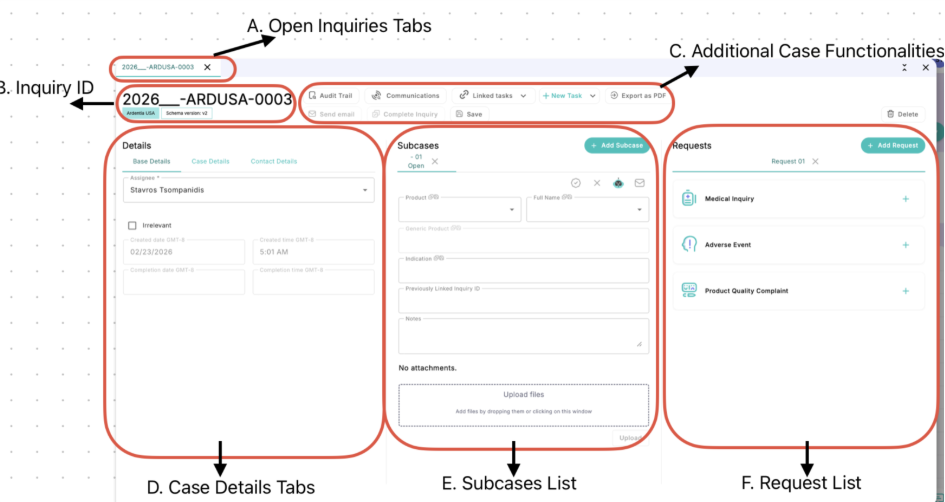
Inquiry Window Overview
When you open a new inquiry, a dedicated inquiry tab will appear, allowing you to work on that specific case.
Starting from the top, the inquiry window includes the following key elements:
-
Open Inquiries Tab Bar:
Displays all open inquiries you have accessed or minimized. Each inquiry appears as a separate tab and is identified by its unique Inquiry ID
-
Inquiry ID:
A unique case identifier that includes the year the inquiry was created, the country of origin, the project abbreviation, and a sequential number specific to each inquiry
-
Note: The country abbreviation is added to the Inquiry ID once the country is selected and the inquiry is saved
-
-
Additional Case Functionalities:
Provides access to tools such as the case audit trail, communications log, and case snapshot export. These features will be covered in more detail in later sections of this guide
-
Case Details Tabs:
Located on the left-hand side, this section contains tabs for key case information, including contact details and important fields such as receipt time and response timeframe
-
Subcases List:
The middle section of the screen displays subcase-related information, including product, indication, notes, and the ability to upload supporting documents
-
Request List:
The lower section is used to create and manage Medical Information inquiries, as well as report Adverse Events (AEs) and Product Quality Complaints (PQCs)